
Documentation Index
Fetch the complete documentation index at: https://fireblocks-43c4b3ee-chore-add-cli.mintlify.app/llms.txt
Use this file to discover all available pages before exploring further.
Overview
This article describes primary transaction statuses on Fireblocks and how they appear in the Fireblocks Console and API. Many primary transaction statuses have substatuses that include additional status-related information. Learn more about transaction substatuses. Transaction statuses are displayed in the Transaction History and the Recent Activity panel in the Fireblocks Console. You can hover over the status in the Recent Activity panel to see the substatus and additional details.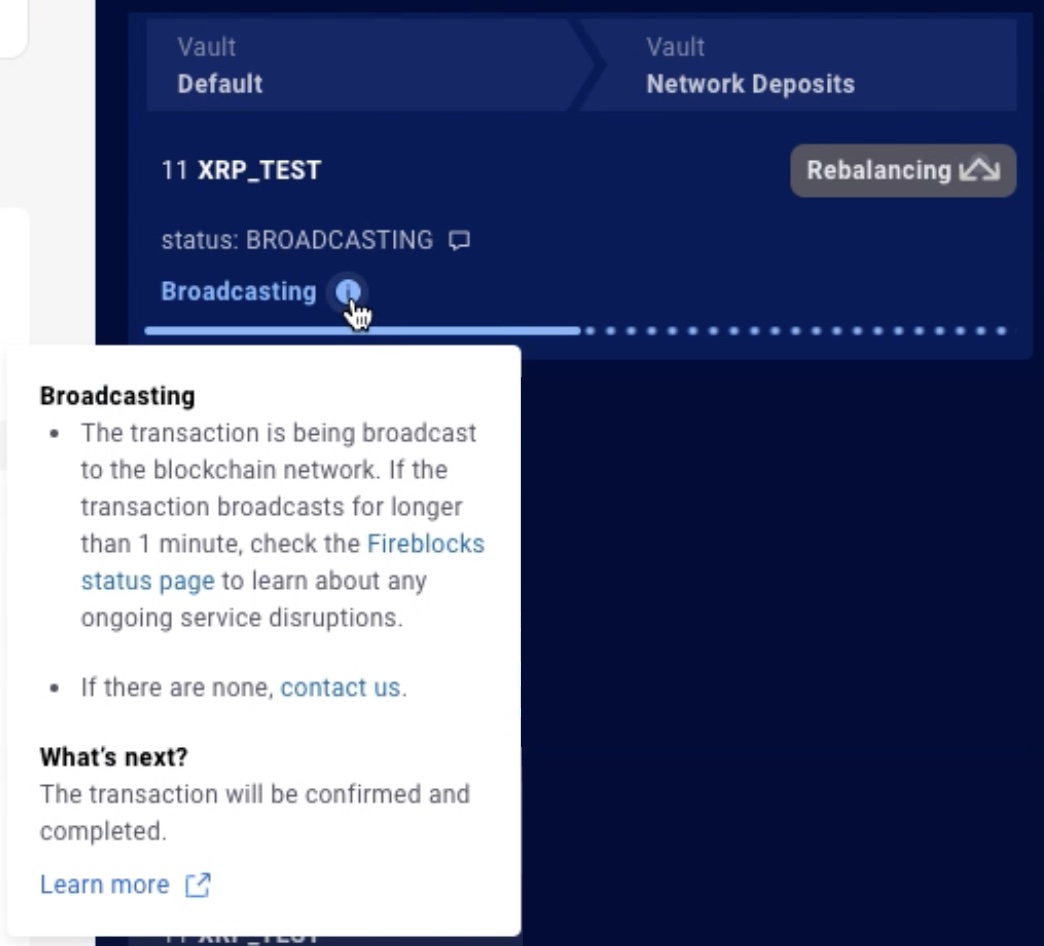
Primary transaction statuses
Submitted
The Submitted status indicates an outgoing transaction was submitted to the Fireblocks system and is currently being processed. It is the first stage for any outgoing transaction where AML/KYC screening is not enabled.- API status code: SUBMITTED
- Appears in the Fireblocks Console as: Submitted
Pending Screening
The Pending Screening status indicates a transaction’s progress depends on the transaction screening result from your Anti-Money Laundering (AML) provider or Travel Rule provider. Only transactions from workspaces with the AML or Travel Rule feature enabled can have this status.- API status code: PENDING_AML_SCREENING
- Appears in the Fireblocks Console as: Pending Screening
Pending Enrichment
The Pending Enrichment status indicates a transaction’s progress depends on the result of Fireblocks’ internal security screening. This security enhancement looks for connections to known smart contract vulnerabilities in limited situations. If a transaction is successfully enriched, some additional metadata is added to the transaction, and the transaction signer may see additional information on their Fireblocks mobile app. No additional notifications or actionable data are sent to the API Co-signer. This internal security screening and enrichment takes place while initiating a transaction and usually takes a few seconds to complete. The status is followed by Pending Authorization. If security enrichment is unsuccessful, the transaction continues processing and does not fail. This security screening will not affect the approval flow of your transactions. Three types of transactions can be enriched:- Typed messages on any EVM blockchain: The typed message is parsed and displayed to the transaction signer.
- Contract calls on Ethereum: A simulation of the contract runs to see which vault assets and balances will be affected, and their projected final values. Outgoing and incoming values, and expected transaction fees are displayed to the transaction signer.
- Any transaction initiated by a dApp: The dApp and the transaction destination are scanned for malicious concern. If the dApp is identified as suspicious, or the destination address is flagged as sanctioned, a notification is shown to the transaction signer. The signer can still choose to sign the transaction and continue.
- API status code: PENDING_ENRICHMENT
- Appears in the Fireblocks Console as: Pending Security Screening
Pending Authorization
The Pending Authorization status indicates an outgoing transaction’s progress depends on a Fireblocks Console user, an API user, or a group of users authorizing the transaction, as defined by the Policies.- API status code: PENDING_AUTHORIZATION
- Appears in the Fireblocks Console as: Pending Authorization
Queued
The Queued status indicates an outgoing transaction is queued for processing.- API status code: QUEUED
- Appears in the Fireblocks Console as: Queued
Transactions stuck in the Queued status
When a transaction appears stuck in the Queued status, you should check for another transaction in the Pending Signature status. This transaction’s details will show the user or users who need to sign or reject the transaction for it to progress, which will allow the next transaction to progress. To help streamline signing and avoid delays associated with manual signing, we recommend that you install and configure an API Co-Signer to process and sign transactions automatically according to your Policy rules.Pending Signature
The Pending Signature status indicates an outgoing transaction is waiting to be signed by the transaction’s designated signer as defined in your Policy. You can view who the designated signer is by hovering over the transaction’s status in the Recent Activity panel.- API status code: PENDING_SIGNATURE
- Appears in the Fireblocks Console as: Pending Signature
Pending email approval
The Pending email approval status indicates the transaction is waiting for the required approval from a third-party service, such as an exchange. The manual approval is usually sent via email.- API status code: PENDING_3RD_PARTY_MANUAL_APPROVAL
- Appears in the Fireblocks Console as: Pending email approval
Processing at the exchange
The Processing at the exchange status indicates a transaction is waiting for approval by a third-party service, such as an exchange.- API status code: PENDING_3RD_PARTY
- Appears in the Fireblocks Console as: Processing at the exchange
Broadcasting
The Broadcasting status indicates an outgoing transaction is being broadcast to the blockchain network.- API status code: BROADCASTING
- Appears in the Fireblocks Console as: Broadcasting
Confirming
The Confirming status indicates a transaction is waiting to be confirmed on the blockchain. Fireblocks monitors the state of the transaction on the blockchain and updates its status accordingly.- API status code: CONFIRMING
- Appears in the Fireblocks Console as: Confirming
Completed
The Completed status indicates the transaction was completed successfully, is now part of the blockchain, and all assets have been transferred.- API status code: COMPLETED
- Appears in the Fireblocks Console as: Completed
Note If you use webhooks to receive transaction status updates, you may receive multiple updates to the Completed status. For example, if your Deposit Control & Confirmation Policy is set for zero confirmations for a particular blockchain, you may receive a webhook notification for the Completed status when the transaction appears on the blockchain as well as on its first or further confirmations.Learn more about Completed substatuses.
Cancelling
The Cancelling status indicates a transaction was canceled or rejected by a Fireblocks user, such as the transaction’s initiator, approver, or designated signer.- API status code: CANCELLING
- Appears in the Fireblocks Console as: Cancelling
Cancelled
The Cancelled status indicates a transaction was canceled or rejected by a Fireblocks user, such as the transaction’s initiator, approver, or designated signer, or by the third-party service that was the source of the transaction.- API status code: CANCELLED
- Appears in the Fireblocks Console as: Cancelled
Blocked by policy
The Blocked by policy status indicates an outgoing transaction was blocked from being completed due to a Policy rule.- API status code: BLOCKED
- Appears in the Fireblocks Console as: Blocked by policy
Resolving blocked transactions
Transactions that are blocked by policy include the corresponding Policy rule number as it appears in your workspace’s settings. If you want to allow these transactions, create a new policy rule in a position that allows the transaction to be correctly enforced according to the first-match principle. Learn more about Blocked by policy substatuses.Rejected
The Rejected status indicates an incoming or outgoing transaction was rejected by the Fireblocks system, an Approver or a Signer, or by a third-party service.- API status code: REJECTED
- Appears in the Fireblocks Console as: Rejected by AML, Manually frozen
- After an outgoing transaction is marked as rejected, all associated assets are available for new transactions.
- After an incoming transaction is marked as rejected, all associated assets will not be available until an Admin-level user unfreezes them.
Failed
The Failed status indicates the transaction is no longer being processed and no assets have been transferred. Transactions can fail from any state.- API status code: FAILED
- Appears in the Fireblocks Console as: Failed